Requests
Venue Admin
The Requests section is your commercial pipeline: it collects prospective clients (leads) from the first contact through to confirmation, helps you follow every negotiation, and lets you convert a won request into an actual event.
Overview
Open "Requests" from the sidebar. At the top you'll find a few summary indicators for the pipeline: new requests, ongoing negotiations, the overall estimated pipeline value and the conversion rate. The "New request" button lets you add a lead at any time.
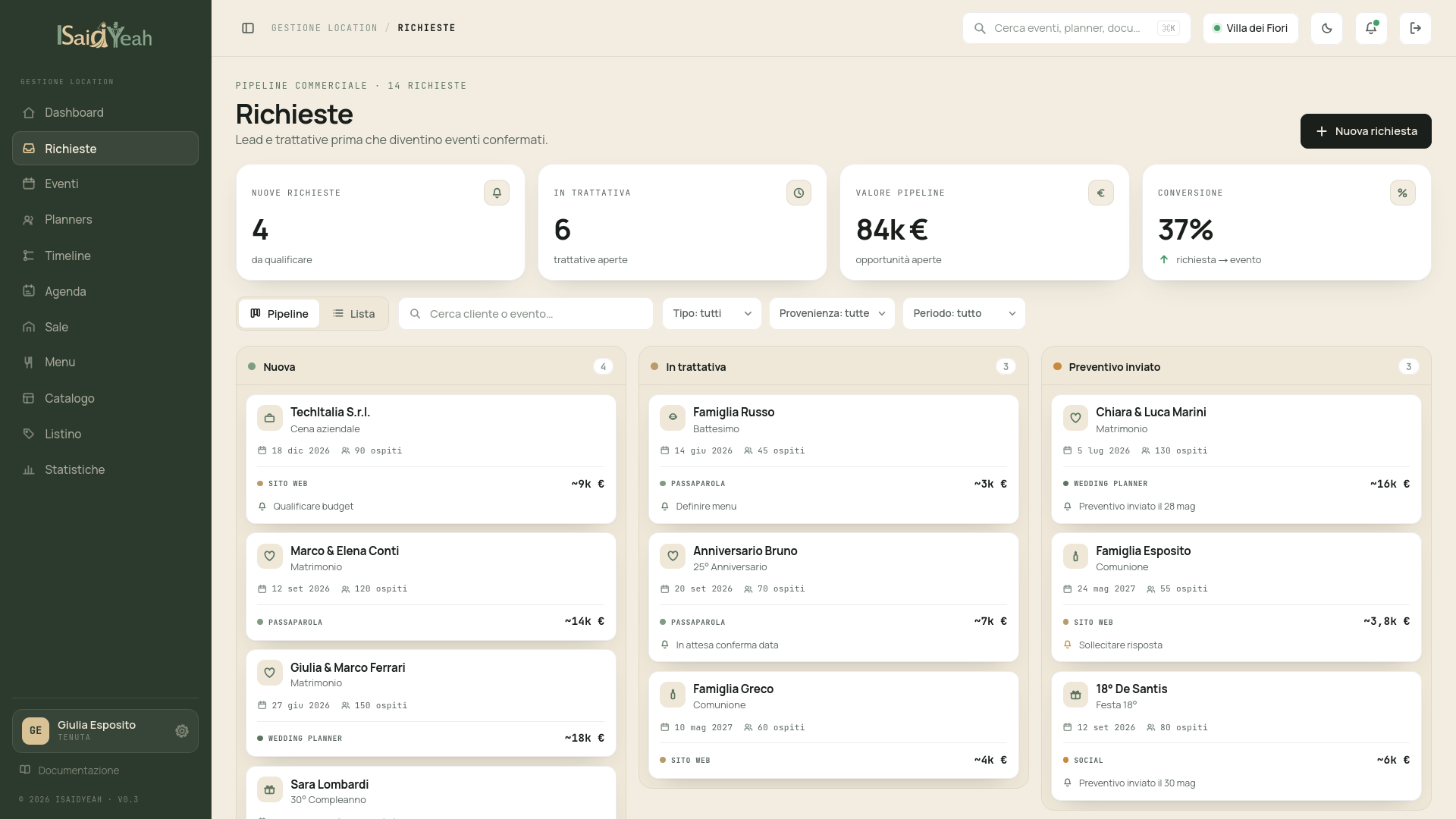
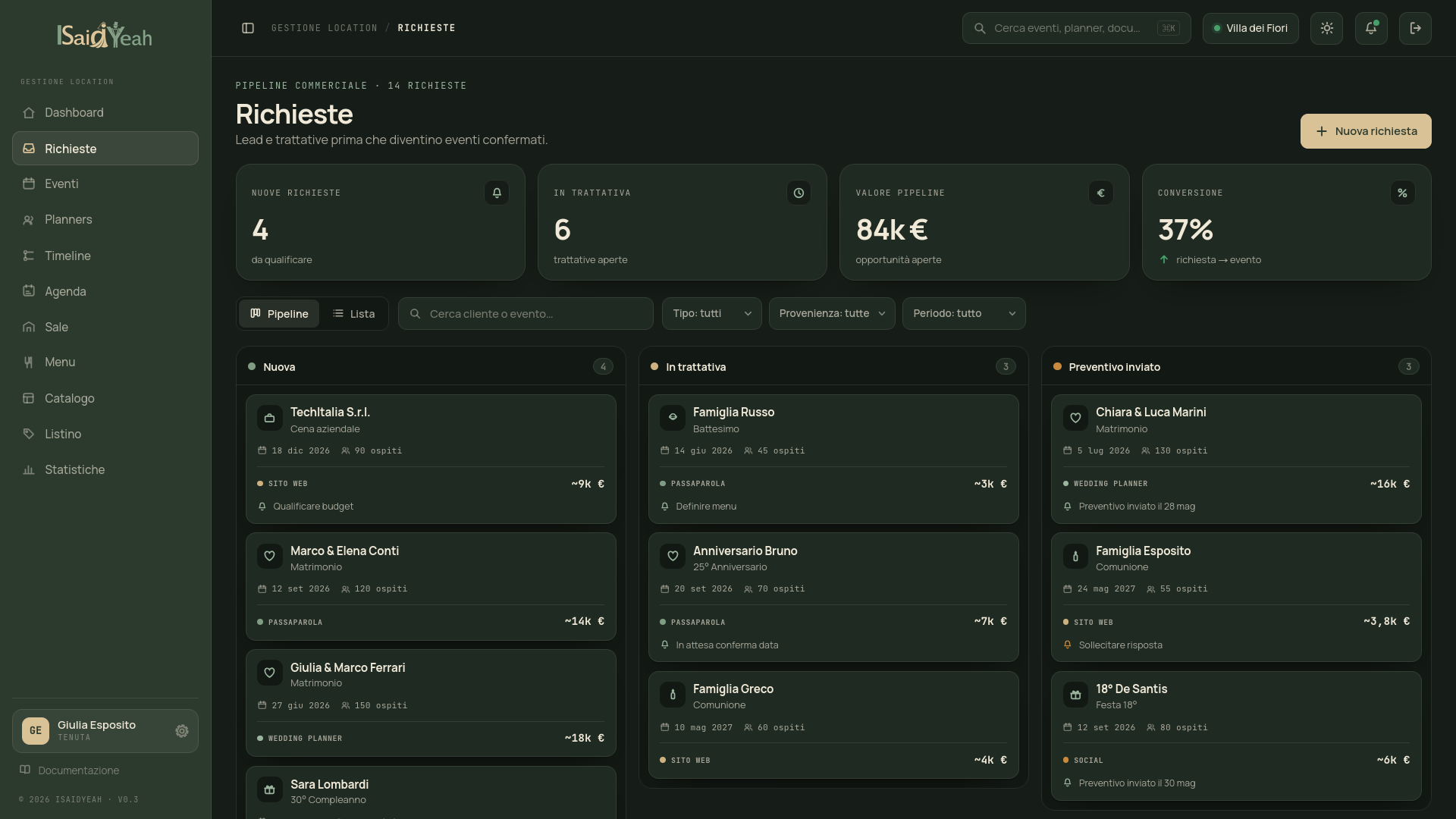
Kanban view and List view
The page can be displayed in two modes:
- Kanban: one column per pipeline stage; drag cards from one column to another to update the negotiation status.
- List: the same pipeline in tabular form, handy for quickly scanning many requests.
The toolbar includes search ("Search client or event") and filters by event type, source and period. Filters apply to the already-loaded requests, so switching between Kanban and List stays instant.
Pipeline stages
Each request follows an ordered funnel:
- New — request just arrived, still to be qualified.
- In negotiation — contact started, negotiation in progress.
- Quote sent — an offer has been sent.
- Won — the request is confirmed and can be converted into an event.
- Lost — the negotiation didn't succeed.
To move a request, simply drag its card to the desired column (or update its status from the card).
Lost reason
When you move a request to Lost, you're asked to provide a reason. If you later reopen the request by moving it to another stage, the reason is automatically cleared.
Creating or editing a request
From the "New request" button (or by opening an existing card) you fill in a form with the contact and prospective event details:
- Contact name, Phone and Email — the client's details (required).
- Celebrants — the names of the people the event is for (e.g. Luca & Valentina).
- Event type — wedding, communion, baptism, birthday and others.
- Desired date — the tentative event date, with an availability check (see below).
- Estimated guests — the approximate number of attendees.
- Estimated value — suggested automatically based on the event type and guest count.
- Source — how the client found you: Word of mouth, Website, Wedding planner, Social, Trade fair, Other.
- Next action — a reminder of the next step to take, with its date.
- Notes — any useful detail about the negotiation.
Checking date availability
While filling in the desired date you can select a hall to check whether that date is free: the system compares the request against events already in the calendar and tells you whether the date is available or booked. This prevents you from pursuing a negotiation on a date that can't be booked.
Converting a request into an event
When a negotiation closes successfully you can turn it into an event in one click. Conversion creates a draft event already linked to the request, ready to be completed with all the details.
When conversion is possible
Only requests in the Quote sent or Won stage can be converted into an event. Requests still to be qualified should first be moved forward in the pipeline.
After conversion, manage the event from the Events section like any other event in your venue.